How to Convert Canva Resume to ATS Friendly Resume in 2026
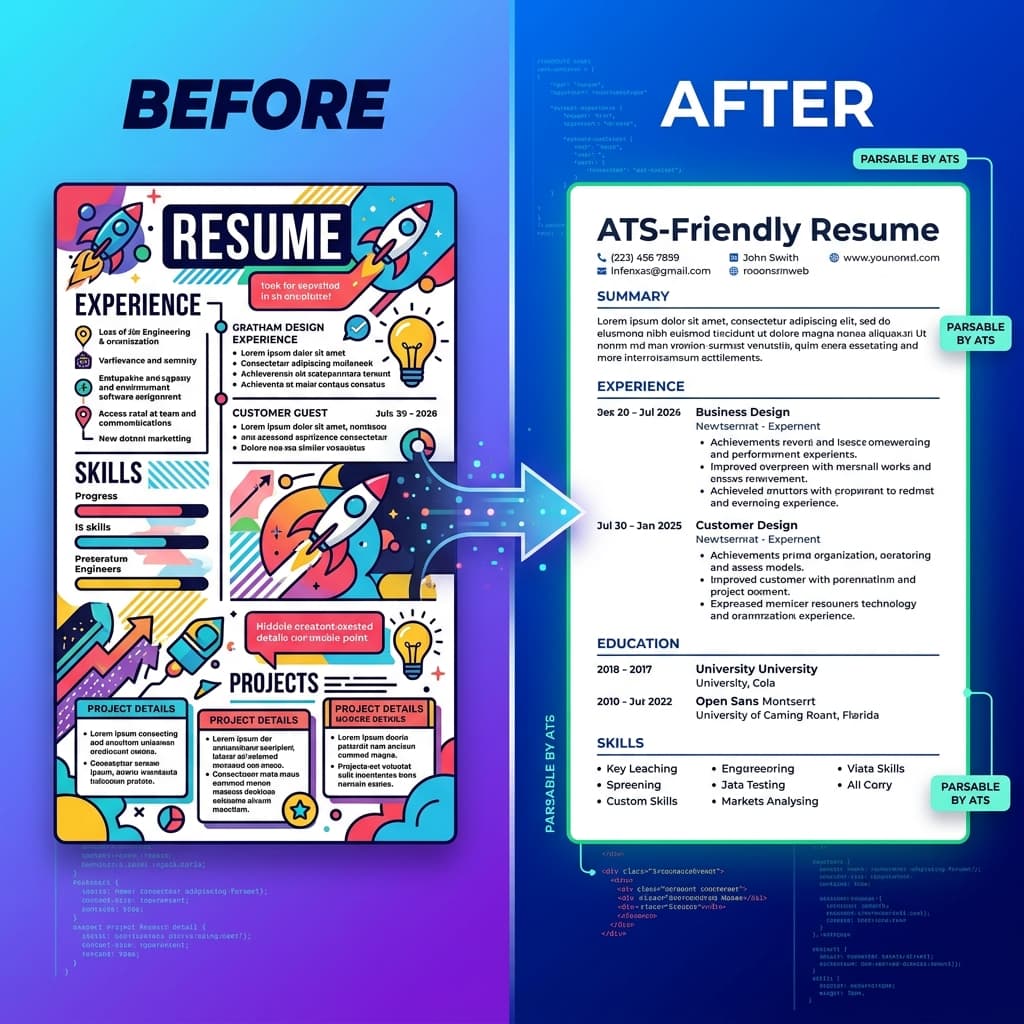
how to convert Canva resume to ATS friendly resume
Are you applying to dozens of jobs with a beautifully designed Canva resume but receiving zero callbacks? The culprit is likely the Applicant Tracking System (ATS) rejecting your highly graphic file before a human ever sees it. In this comprehensive guide, we will show you exactly how to convert Canva resume to ATS friendly resume formats so you can bypass automated filters, showcase your real qualifications, and start landing the interviews you deserve.
Scan Your Resume Now
Upload your newly converted resume below to verify that it is fully ATS readable.
Upload Resume
PDF, DOCX, or TXT
Tap to upload or drop file
PDF, DOCX, or TXT
Don't have a resume?
Build a professional ATS-friendly resume from scratch in minutes.
Target
Select a Job Role to check your ATS score against that profession and have our AI optimize your resume for it. Switch to Job Description for a precise analysis.
Section 1: Why This Issue Happens
Canva is a phenomenal design tool that provides thousands of stunning, visually striking resume templates. Job seekers naturally gravitate towards these templates because they look modern, creative, and professional to the human eye. However, hiring in the modern age is not driven by human eyes—it is driven by Applicant Tracking Systems (ATS).
When you upload a Canva resume to a company's career portal, the ATS attempts to "parse" (read and extract) the text to build a digital candidate profile. The problem is that Canva templates rely heavily on complex visual elements that break these parsing algorithms.
Here is exactly why Canva templates fail in ATS environments:
- Multi-Column Layouts: Many Canva designs use a left sidebar for skills and contact info, and a wider right column for experience. ATS parsers often read straight across the page from left to right, mashing your skills and job descriptions together into incomprehensible gibberish.
- Text Boxes and Floating Elements: Canva builds layouts using independent, floating text boxes. When exported to PDF, the underlying text structure lacks the natural chronological flow required by ATS parsing engines.
- Unreadable Graphics and Icons: Those cute phone icons next to your number, or the star-rating graphics for your skills? The ATS cannot read them. Worse, they often convert into weird symbols (like Wingdings) that corrupt the text around them.
- Non-Standard Fonts: Canva offers thousands of custom fonts. If the ATS server does not recognize the font embedding in the PDF, it may fail to extract the text completely.
Section 2: Real Example Before/After
To understand how critical this conversion is, let's look at a practical example of a candidate trying to figure out how to convert Canva resume to ATS friendly resume formats.
The "Before" (Canva Original): Sarah, a Marketing Manager, used a popular two-column Canva template. Her name and contact info were in a dark blue header. Her skills were represented by progress bars on the left, and her experience was on the right. When she ran it through an ATS scanner, the system extracted her name as "Marketing Skills 80%" because the parser read horizontally across the columns. Her contact information disappeared entirely because it was embedded in a graphic header.
The "After" (ATS-Friendly Conversion): Sarah stripped away the dark header and progress bars. She moved all her content into a clean, single-column, top-to-bottom layout. She changed her headers to standard bold text (e.g., "Work Experience") and replaced the progress bars with a comma-separated list of skills. When she scanned the new version, the ATS accurately extracted 100% of her data, categorizing her experience and contact details perfectly. Her callback rate jumped from 0% to over 30% within a month.
Section 3: Step-by-Step Fix
If you are ready to stop getting automatically rejected, here is the exact, step-by-step process on how to convert Canva resume to ATS friendly resume standards:
Step 1: Switch to a Single-Column Layout
Open a new, blank document in Word or Google Docs (or use our dedicated resume tailor). Transfer your text from the Canva file into this single-column document. Ensure the flow is logical from top to bottom: Contact Info → Professional Summary → Work Experience → Education → Skills.
Step 2: Strip Out All Graphics and Icons
Remove any photographs, logos, skill bars, pie charts, and contact icons. Replace them with plain text. For example, instead of a phone icon, simply write "Phone: (555) 123-4567".
Step 3: Standardize Your Fonts and Formatting
Change the entire document to a standard, universally recognized font such as Arial, Calibri, or Times New Roman. Use standard bullet points (solid black circles) for your experience lists. Do not use checkmarks, arrows, or custom symbols.
Step 4: Use Explicit, Standard Section Headings
The ATS looks for specific keywords to map your data. Use standard headings exactly as they are written: "Work Experience", "Education", and "Skills". Do not use creative alternatives like "My Journey" or "What I Do Best".
Step 5: Export as a Text-Searchable PDF
Once your document is formatted, export it as a standard PDF. To verify it is text-searchable (and not a flattened image), open the PDF and try to highlight a sentence with your mouse. If you can highlight and copy the text, the ATS parser can read it.
Section 4: Common Mistakes
Even when attempting the conversion, many job seekers make critical errors that still result in ATS failure. Avoid these common mistakes:
- Using Canva's "Minimalist" Templates: Even Canva's simpler templates often use underlying text boxes and non-standard line spacing that can break a parser. It is always safer to build the layout natively in an ATS-focused builder or word processor.
- Saving as an Image (PNG/JPG): Never export your resume as an image file. An ATS cannot read text locked inside an image pixel. Always use a text-based PDF or DOCX.
- Keeping Complex Tables: Some candidates replace columns with invisible tables to keep their text aligned. Most ATS parsers extract table data unpredictably, causing sections to merge out of order.
- Ignoring Keyword Optimization: Formatting is only half the battle. If your newly formatted resume lacks the specific keywords from the job description, you will still rank poorly. Use an optimization tool to align your vocabulary with the role.
Section 5: Free Scanner CTA
You do not have to guess whether your new layout works. Before you submit another application, you must verify that your formatting is truly machine-readable.
Test your newly converted resume against our enterprise-grade parsing engine. Run your resume through our Free ATS Scanner today. Our tool will instantly reveal exactly how automated systems read your file, highlight any remaining formatting errors, and identify critical keyword gaps holding you back. Ready for an all-in-one solution? Check out our affordable pricing plans to unlock unlimited AI optimizations.
Section 6: FAQ
How to convert Canva resume to ATS friendly resume?
To convert your resume, you must abandon the graphic template. Move all your content into a clean, single-column layout using a standard word processor or dedicated ATS builder. Remove all graphics, charts, and icons, use a standard font like Arial, and export the file as a text-searchable PDF.
Can ATS read Canva resumes?
In most cases, no. While some highly advanced semantic parsers might extract fragments of text, the vast majority of Applicant Tracking Systems will get confused by Canva's multi-column layouts, text boxes, and graphic elements, resulting in a rejected application.
Is saving a Canva resume as PDF ATS friendly?
Not automatically. While exporting as a PDF is better than exporting as an image, if the underlying layout of that PDF features multiple columns, complex graphics, or floating text boxes, the ATS will still fail to parse the document chronologically.
Further Reading
Enhance your job search strategy with our other expert guides. Learn how to beat the ATS system, discover why one resume isn't enough, and read our deep dive on mastering the ATS keyword gap analyzer. Need a highly targeted introduction? Try our cover letter generator to complete your application package.