How to Convert Canva Resume to ATS Friendly Resume: Step-by-Step
Introduction: The Frustrating Reality of Creative Resume Designs
If you are currently on the job hunt, you have probably spent hours browsing design templates online. You want your application to stand out from the competition, and Canva seems like the perfect solution. With its vibrant color schemes, modern multi-column layouts, progress bars for skills, and polished graphics, a Canva resume looks like a work of art.
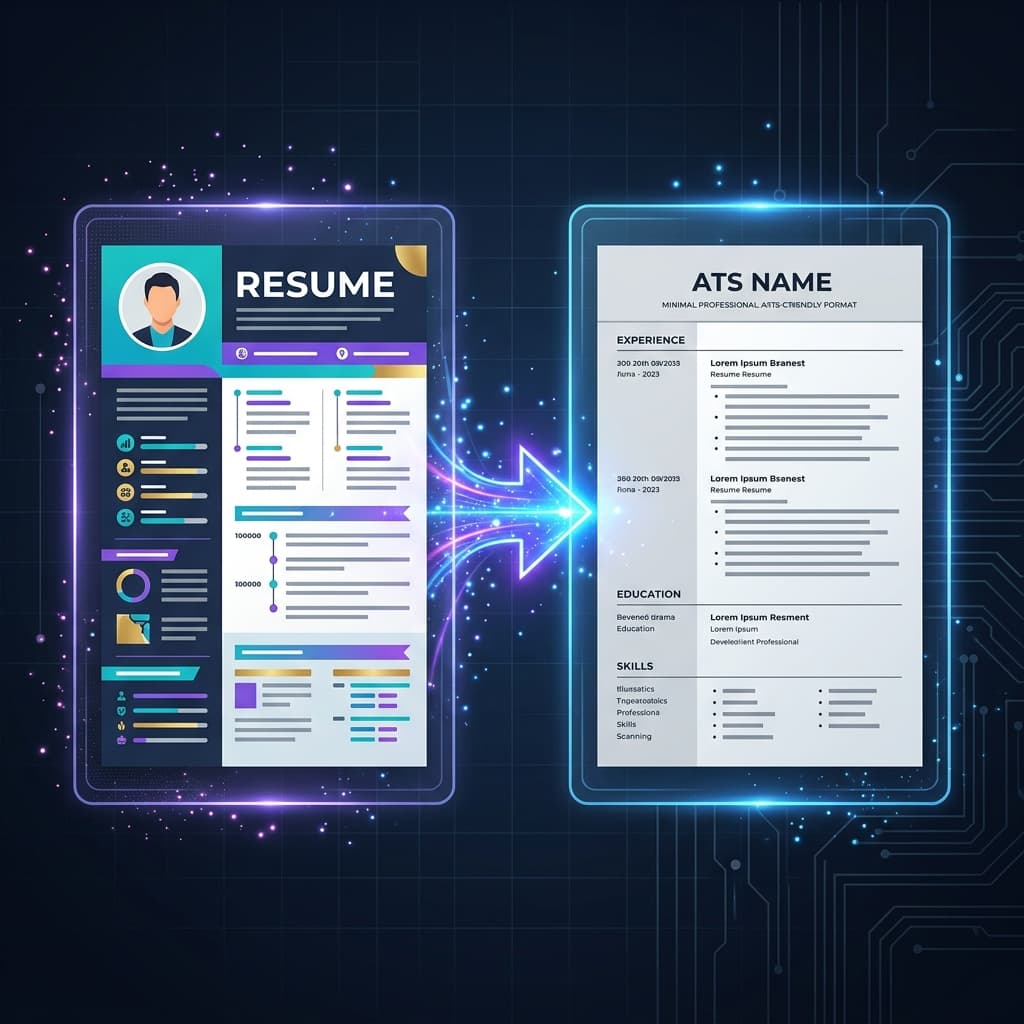
However, there is a major problem that thousands of job seekers in the United States and the United Kingdom are discovering the hard way: these beautiful templates are almost completely unreadable by the software employers use. If you want a real chance at landing interviews, you must learn how to convert Canva resume to ATS friendly resume formats. Otherwise, your application will likely end up in the digital "black hole," rejected automatically before a human recruiter ever gets to look at it.
In this step-by-step guide, we will dive deep into the technical reasons why Canva templates fail automated screenings and show you exactly how to convert Canva resume to ATS friendly resume layouts without starting from scratch.
Why Canva Resumes Fail Applicant Tracking Systems (ATS)
To understand why you need to convert Canva resume to ATS friendly resume formats, you must understand how Applicant Tracking Systems work. Systems like Workday, Taleo, Greenhouse, and Lever do not read resumes the way humans do. Instead, they use a program called a "parser" to scan the document, strip away the styling, and extract the raw text into a structured database.
When a parser encounters a Canva PDF, it runs into several technical roadblocks:
- Horizontal Parsing on Multi-Column Layouts: Most Canva templates split the page into two or three columns. Recruiters read columns vertically, but older and even some modern ATS parsers read from left to right across the entire width of the page. This merges text from different columns, turning your work history and skills into absolute gibberish.
- Invisible Text Boxes: Canva compiles PDFs using layered, absolute-positioned text boxes. To a parser, this looks like a random puzzle. It extracts the text in the order the boxes were created, not the order in which they appear on the page, completely scrambling your chronological work history.
- Image-Only Exports: Many job seekers mistakenly export their Canva files as JPEG or PNG images and insert them into PDFs. An ATS cannot read text locked inside an image. If the parser cannot find highlightable text, it marks the resume as blank.
- Graphic elements and Icons: Icons for phone numbers, email addresses, or social media links are ignored by parsers. More dangerously, skill progress bars or star ratings are read as empty space or garbled characters, meaning you receive zero credit for those skills.
Convert Canva Resume to ATS Friendly Resume Instantly
Not sure if your Canva layout is blocking your job applications? Upload your resume below to run it through our advanced ATS parser. We'll show you exactly what hiring systems see, identify unreadable sections, and help you auto-convert it for top US & UK roles.
Upload Resume
PDF, DOCX, or TXT
Tap to upload or drop file
PDF, DOCX, or TXT
Don't have a resume?
Build a professional ATS-friendly resume from scratch in minutes.
Target
Select a Job Role to check your ATS score against that profession and have our AI optimize your resume for it. Switch to Job Description for a precise analysis.
How to Convert Canva Resume to ATS Friendly Resume: The Step-by-Step Conversion Process
Converting your document does not mean you have to sacrifice all visual appeal. It simply means aligning your document structure with the technical standards that modern parsers require. Follow this manual process to convert Canva resume to ATS friendly resume formats:
Step 1: Re-structure into a Single-Column Layout
The absolute first rule of ATS compliance is a single-column layout. Open a clean word processor like Google Docs, Microsoft Word, or our integrated builder. Copy your work history, education, and summary from Canva and paste them into the new document in a single, top-to-bottom stream. This ensures the parsing algorithm reads your information in the exact chronological sequence you intended.
Step 2: Clean Up Your Contact Information
Many Canva templates place contact details inside a colored header or footer. Because parsers are often programmed to ignore headers and footers to avoid repeating text, this can leave you with a blank contact profile. Move your name, phone number, email address, location, and LinkedIn URL into the main body of the document at the very top. Avoid using icons; write clear labels like "Email:" or "LinkedIn:" to ensure the system maps them correctly.
Step 3: Replace Graphics with Text-Based Competencies
If your Canva template used circular charts or progress bars to show your proficiency in tools like Photoshop or Python, delete them. A machine cannot read "4 out of 5 stars." Instead, list your skills in a dedicated "Skills" or "Core Competencies" section as a comma-separated list of plain text keywords. This allows the ATS keyword matching algorithm to index your skills.
Step 4: Use Universal, Standard Fonts
Canva features thousands of custom, stylistic fonts. While they look great, they often do not embed properly in PDF files. When the ATS tries to decode the file, the text can turn into corrupted symbols. To prevent this, stick to standard, widely recognized fonts like Arial, Calibri, Georgia, Times New Roman, or Helvetica.
Step 5: Verify the PDF Text Layer
When you save your new resume as a PDF, open the file on your computer and try to highlight the text with your cursor. If you can select, copy, and paste the text into a plain text file, the document has a digital text layer and is ready for ATS parsing. If you cannot highlight the text, it is saved as a flat image, and you must export it again as a standard PDF document.
Canva to ATS Resume Formatting: US vs. UK Job Market Nuances
Depending on whether you are applying for jobs in the United States or the United Kingdom, there are specific standards you must follow when you convert Canva resume to ATS friendly resume files:
| Feature | United States (Resume) | United Kingdom (CV) |
|---|---|---|
| Photos & Headshots | Strictly Forbidden. Resumes with photos are immediately auto-rejected to comply with US anti-discrimination laws. | Generally Discouraged. Unless you are in acting or modeling, do not include photos on your UK CV to avoid bias and parser errors. |
| Length Requirements | Max 1-2 Pages. US hiring managers favor high density, short resumes. Keep it highly focused. | Standard 2 Pages. A UK CV can comfortably extend to two pages to provide comprehensive context. |
| Personal Details | Do not include date of birth, nationality, or marital status. | Do not include age, nationality, or references directly unless requested by the recruiter. |
Common Conversion Pitfalls to Avoid
Many candidates attempt to convert Canva resume to ATS friendly resume formats but make minor errors that still trigger rejection:
- Using Invisible Tables: To align text in a single column, some candidates build invisible tables. While this looks neat, many parsers read table cells out of order, scrambling your bullet points. Use standard indentation and tab stops instead.
- Custom Bullet Symbols: Using checkmarks, stars, or triangles as bullets looks creative, but parsers frequently translate these custom symbols into question marks or strange characters, breaking the readability of your achievements. Stick to standard circular bullets.
- Forgetting Keyword Alignment: Adjusting your formatting is only half the battle. If your resume does not contain the exact keywords from the job description, you will pass the format test but fail the relevance score. Make sure to run your resume through a scanner to check for keyword gaps.
Conclusion: Build a Resume That Stands Out to Both Machines and Humans
You do not have to choose between a professional design and technical compliance. By choosing to convert Canva resume to ATS friendly resume structures, you guarantee that your accomplishments are correctly indexed by corporate databases, while maintaining a clean, professional, and elegant aesthetic that human recruiters will appreciate.
Stop letting beautiful graphic templates stand between you and your dream job. Use our specialized tools to audit your resume format, identify critical keyword gaps, and generate optimized documents that rank high on recruiter dashboards. Take control of your application process today!